Gates Control
In this tutorial we will learn how to build a dynamic infusion process using sensors and gate controls. We will simulate a sequential multi-inlet infusion strategy, where inlets are initially closed and get opened progressively as the flow front advances through the part. The idea is that we will create some virtual sensors on the part, and use their signal to trigger the opening of inlets.
All files used in this tutorial are available in the tutorials/gates_control folder. We recommend you download the mesh alone and create the script yourself following the tutorial.
Note
If you have not yet completed the Channel Flow tutorial, we advise to do that first because here we will not cover in detail the steps that were already introduced.
The mesh
The mesh represents a 1 m × 0.5 m rectangular panel. The part has three thin strips, extruded normal to the plane of the domain: the first at x=0m, the second at x=0.35m and the third at x=0.70m. We will use these to define inlets. The mesh contains 5 physical groups:
edge_1: line tag assigned to the left edge of the part (x = 0)
edge_2: line tag assigned to the edge of the strip at x = 0.35 m
edge_3: line tag assigned to the edge of the strip at x = 0.70 m
inlet: elements tag assigned to the three thin strips
domain: elements tag assigned to the main laminate regions
Preparing the working folder
Follow the same steps described in Channel Flow to set up the working folder and copy the mesh file into it. Create a new Python script — in this example we name it gates_control.py.
Setting up the model
Let’s import Lizzy and configure logging:
import lizzy

import logging
logging.basicConfig(level=logging.INFO)
Let’s create the LizzyModel and read the mesh:
model = lizzy.LizzyModel()
model.read_mesh_file("GatesControl.msh")
model.set_simulation_parameters(output_interval=10, progress_bar=False, end_step_when_sensor_triggered=True)
Note
end_step_when_sensor_triggered=True instructs the solver to interrupt the current solving operation as soon as a sensor registers resin arrival. We will use this to pause the filling in-between inlet activations.
Creating materials
Define a resin with viscosity 0.1 Pa s:
model.create_resin("resin_01", 0.1)
model.assign_resin("resin_01")
This mesh has two surface domains, so we must assign a material to each of them. The inlet strips are modelled as a highly permeable distribution layer — here, an arbitrarily high value — which causes them to fill almost instantly and with very little pressure drop.
model.create_material("inlet_material", (1E-8, 1E-8, 1E-8), 1.0, 0.010)
model.assign_material("inlet_material", 'inlet')

model.create_material("domain_material", (1E-10, 1E-10, 1E-10), 0.5, 0.005)
model.assign_material("domain_material", 'domain')
Important
Each material tag present in the mesh must be assigned a material, otherwise initialisation will raise a lizzy.MeshError.
Boundary conditions
We define three pressure inlets, one on each vertical edge:
model.create_pressure_inlet("inlet_1", 1E+05)
model.assign_inlet("inlet_1", "edge_1")

model.create_pressure_inlet("inlet_2", 1E+05)
model.assign_inlet("inlet_2", "edge_2")

model.create_pressure_inlet("inlet_3", 1E+05)
model.assign_inlet("inlet_3", "edge_3")
Note that all three inlets are created here in the pre-initialisation phase. There is no notion of their open/closed state at this point. The logic for opening and closing inlets must be defined after initialisation.
Creating sensors
We will now create lizzy.Sensor objects to track the arrival of the resin at specified positions. We place two sensors 1 cm downstream of the second and third inlets: one at x=0.36 m and the other at x=0.71 m. This way, when a sensor triggers, we know that the flow front has just passed the corresponding inlet, and we can safely open it.
model.create_sensor("sensor_01", (0.36, 0.25, 0))
model.create_sensor("sensor_02", (0.71, 0.25, 0))
Note
There is no need for absolute precision in the sensor coordinates: they are snapped to the nearest mesh nodes automatically.
The control loop
Now we are ready to define the control logic. The idea is to run the simulation in a loop, checking the sensor states at each iteration and opening inlets when they trigger. First, initialise the solver as usual:
model.initialise_solver()
Before beginning to fill the part, we close the two downstream inlets so that filling begins only from the left edge:
model.close_inlet("inlet_2")
model.close_inlet("inlet_3")
Note
Inlets can only be opened or closed after initialise_solver() has been called. Attempting to do so before initialisation will raise a lizzy.StateError.
Rather than calling solve() once to run until filled, we will use the method solve_time_interval() in a loop. This method advances the simulation by at most the given duration (in seconds) and returns control to the next expression. More importanly though, this mode can be interrupted as soon as a sensor triggers (activated when we set end_step_when_sensor_triggered=True in the simulation parameters earlier):
while model.get_sensor_by_name("sensor_01").resin_arrived == False:
    model.solve_time_interval(10000)
Notice that we have set the time interval to a very large value, which will never be reached because the trigger condition will trigger sooner.
Once sensor_01 triggers — meaning the flow front has crossed x = 0.36 m — we open the second inlet and continue injecting until sensor_02 fires:
model.open_inlet("inlet_2")
while model.get_sensor_by_name("sensor_02").resin_arrived == False:
    model.solve_time_interval(10000)
Finally, we open the third inlet and run the simulation to full part fill:
model.open_inlet("inlet_3")
model.solve()
Save results
model.save_results()
The full script
import lizzy

# Set up logging level
import logging
logging.basicConfig(level=logging.INFO)

# Set up the model: notice ``end_step_when_sensor_triggered=True`` because we want to use sensors to control the process.
model = lizzy.LizzyModel()
model.read_mesh_file("GatesControl.msh")
model.set_simulation_parameters(output_interval=10, progress_bar=False, end_step_when_sensor_triggered=True)

# Resin
model.create_resin("resin_01", 0.1)
model.assign_resin("resin_01")

# Materials
model.create_material("inlet_material", (1E-8, 1E-8, 1E-8), 1.0, 0.010)
model.assign_material("inlet_material", 'inlet')

model.create_material("domain_material", (1E-10, 1E-10, 1E-10), 0.5, 0.005)
model.assign_material("domain_material", 'domain')

# Boundary conditions
model.create_pressure_inlet("inlet_1", 1E+05)
model.assign_inlet("inlet_1", "edge_1")

model.create_pressure_inlet("inlet_2", 1E+05)
model.assign_inlet("inlet_2", "edge_2")

model.create_pressure_inlet("inlet_3", 1E+05)
model.assign_inlet("inlet_3", "edge_3")

# Sensors
model.create_sensor("sensor_01", (0.36, 0.25, 0))
model.create_sensor("sensor_02", (0.71, 0.25, 0))

#Solver initialisation: this must be called before we can open or close inlets, or check sensor states.
model.initialise_solver()
model.close_inlet("inlet_2")
model.close_inlet("inlet_3")

# Start filling
while model.get_sensor_by_name("sensor_01").resin_arrived == False:
    model.solve_time_interval(10000)

# Resin has reached sensor_01, open the second inlet
model.open_inlet("inlet_2")
while model.get_sensor_by_name("sensor_02").resin_arrived == False:
    model.solve_time_interval(10000)

# Resin has reached sensor_02, open the third inlet
model.open_inlet("inlet_3")
model.solve()

# Save results
model.save_results()
Solution visualisation
Load the file GatesControl_RES.xdmf into Paraview to visualise the results. When prompted, make sure to select `Xdmf3 Reader S` to avoid formatting issues.
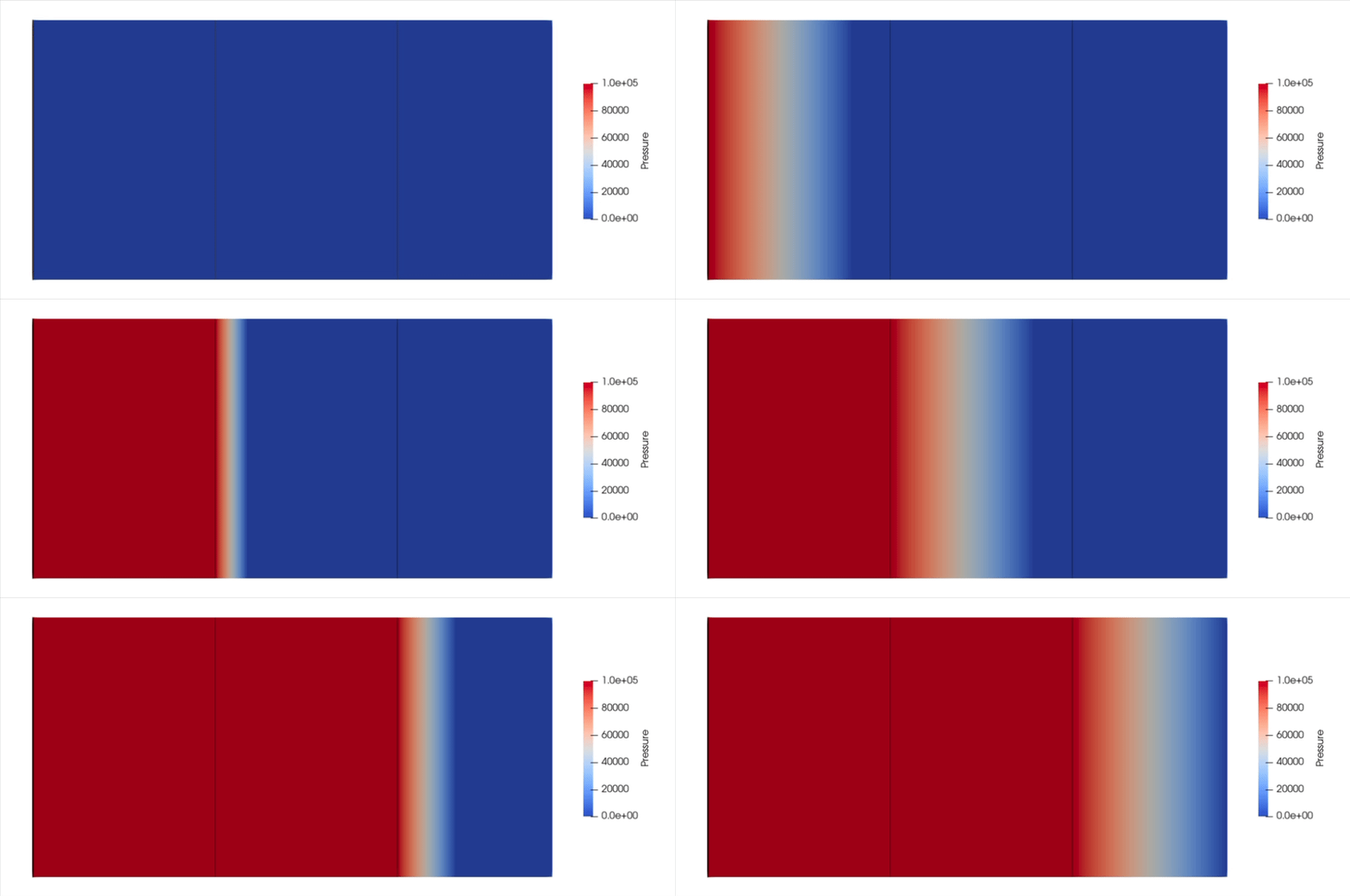
The sequential opening of the inlets should be clearly visible in the flow front progression. More so if we plot the velocity field (which will spike when inlets open) or the pressure field (which will explicitely show the pressure firing at the inlets when they open). Is is worth noting how, as expected, the total fill time is significantly reduced from the Channel Flow tutorial, even though the part has the same geometry.